Adding chapters to your YouTube video is surprisingly straightforward. At its core, it’s just a matter of typing out timestamps and titles in your video’s description. The golden rules are simple: you have to start with 00:00, list at least three chapters chronologically, and make sure each one is at least 10 seconds long. A few minutes of work can make your content so much easier for people to navigate.
Why YouTube Chapters Are a Game Changer for Creators
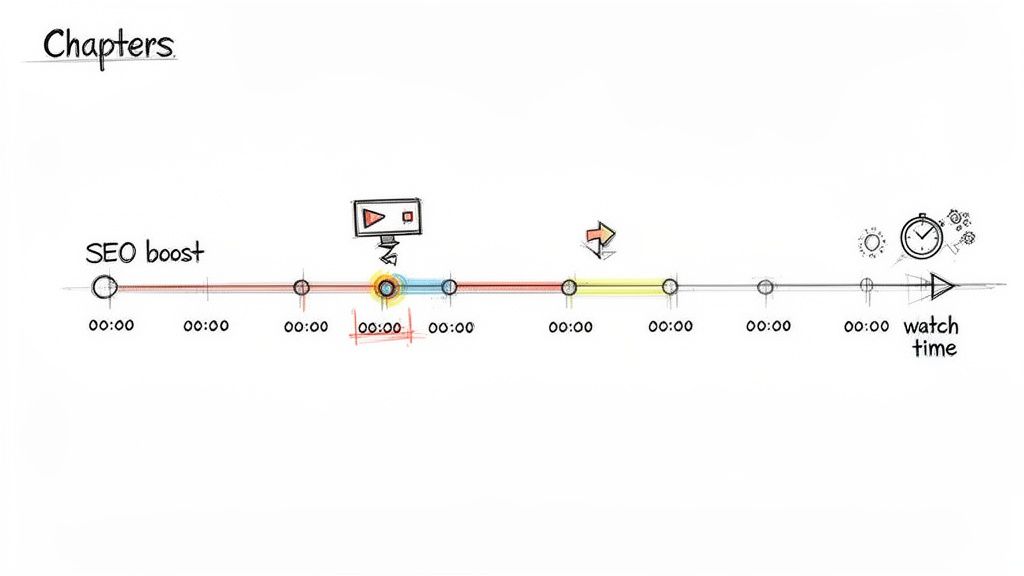
Putting chapters in your video isn't just about being tidy; it’s a real strategy that changes how people experience your content. Think of it as giving your viewers a table of contents. It’s a small touch that makes your videos, especially the longer, more detailed ones, feel incredibly professional and user-friendly.
Picture this: someone lands on your 20-minute tutorial looking for one specific answer. Without chapters, they’re stuck scrubbing back and forth, getting frustrated, and probably leaving. But with chapters, they can instantly jump to the part they need. You’ve just turned a potential bounce into a happy viewer. That’s a massive win for keeping people around.
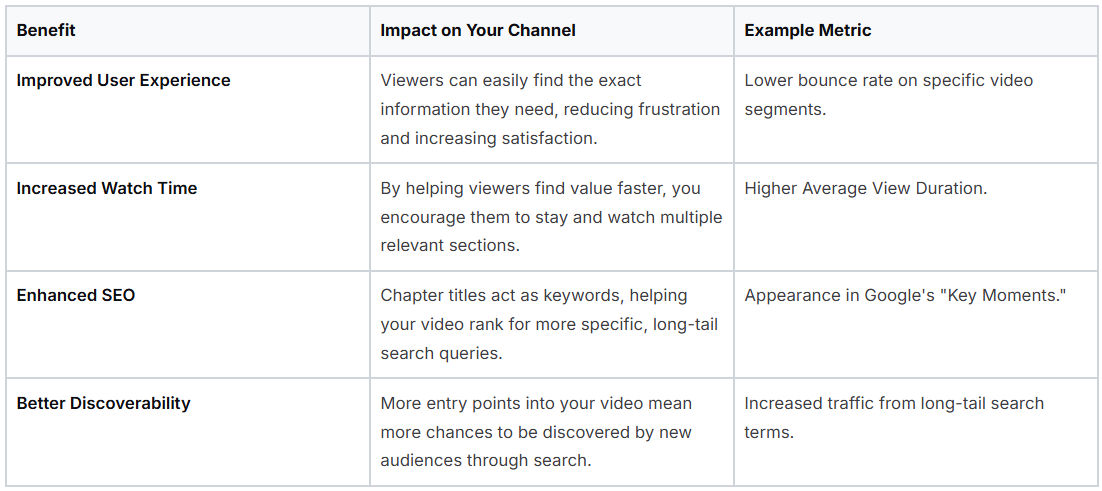
To really see the value, let's break down the advantages you gain when you start using chapters.
Key Benefits of Using YouTube Chapters
Key Benefits of Using YouTube Chapters
As you can see, the benefits go far beyond simple organization, touching everything from viewer retention to search visibility.
Boosting Viewer Engagement and Watch Time
I know what you're thinking. If I let people skip ahead, won't that kill my watch time? It feels like it should, but my experience and the data show the opposite is usually true. Chapters empower viewers to get what they came for, which makes them much more likely to stick around and see what else you have to offer.
Instead of just leaving, a viewer might watch the two or three segments that are most important to them. To the YouTube algorithm, that’s a huge signal that your content is valuable and gets straight to the point.
Since YouTube rolled this feature out in 2020, we’ve seen a real shift. Some creators report that videos with chapters get up to a 30% bump in average view duration. That's because you're serving viewer intent perfectly, which also leads to better click-through rates from search results where those chapter titles are often displayed.
Enhancing SEO and Discoverability
Beyond making your viewers happy, chapters give your video’s SEO a serious boost. Every time you create a chapter with a clear, descriptive title, you’re feeding YouTube and Google more context about what’s inside your video.
Think of each chapter title as a keyword-rich signpost. This helps the search algorithms in a few key ways:
Better Search Rankings: Your video can now show up for very specific searches related to your chapter titles, not just your main title.
"Key Moments" in Google Search: Google often pulls chapter information directly into search results, showing them as "Key Moments." This lets users click right into the most relevant part of your video from the search page itself.
More Visibility: By breaking your video into logical chunks, you’re creating more doorways for people to find you.
It's like you're optimizing one video for a dozen different search queries at once. You're not just creating a video; you're creating a resource, and that's what truly expands your reach.
The benefits are undeniable. And if you're looking to make this process even easier, tools are now available that offer features like automatic video chapter generation to handle the heavy lifting. Adding chapters isn't just a "nice-to-have" anymore; it’s a must-do for any creator serious about growth.
Adding Timestamps Manually in Your Video Description
The most straightforward way to add chapters to your YouTube video is to just type them right into the description box. This hands-on approach gives you total control and is the original method YouTube created for this feature. It's not complicated, but you have to get the formatting perfect, otherwise all your effort will be for nothing.
Think of it as creating a table of contents for your video. You’re simply making a list of timestamps, each with a short, punchy title that tells viewers what’s happening in that section.
The Unbreakable Rules of Timestamp Formatting
For YouTube to recognize your list and turn it into those neat, clickable chapters, you have to follow a few strict rules. Even a tiny typo can break the whole thing, so it pays to be meticulous here.
Here’s what you absolutely have to get right:
Always Start at Zero: Your very first timestamp must be 00:00. If you skip this, none of the other chapters will show up.
Keep it Chronological: The list has to be in sequential order, from start to finish. You can’t have a timestamp for 05:10 appear before one for 03:20.
Give Them Some Room: Each chapter needs to be at least 10 seconds long. So, the gap between one timestamp and the next must be 10 seconds or more.
The Rule of Three: You need a minimum of three timestamps in your list (including the required 00:00 start) to activate the chapter feature.
I can't tell you how many times I've seen chapters fail because of a simple formatting mistake. Using a period instead of a colon (02.45 instead of 02:45) or forgetting the leading zero on a single-digit minute (5:15 instead of 05:15) are the most common culprits. Always give your list a final once-over for these little details.
What Good Timestamp Lists Look Like in Practice
How you structure your chapters should mirror the flow of your video. A logical breakdown gives viewers an instant roadmap of your content, which they'll appreciate.
Let's say you just uploaded an in-depth review of the latest smartphone. Your timestamps should walk the viewer through every part of your analysis.
Example for a Tech Review Video: 00:00 Intro & Unboxing 01:15 Design and Build Quality 03:40 Screen Performance 05:55 Camera Test & Photo Samples 08:20 Battery Life Results 10:30 Final Verdict & Recommendations
See how clean that is? It's easy to scan and tells someone exactly where to find the camera test or your final thoughts.
Now, let’s pivot to a completely different niche, like a cooking video. Here, the chapters should follow the recipe step-by-step, making it super easy for someone to cook along with you.
Example for a Cooking Tutorial: 00:00 Introduction to the Recipe 00:45 Gathering Your Ingredients 02:10 Preparing the Vegetables 04:30 Cooking the Main Dish 09:15 Plating and Presentation Tips
In both cases, the chapters make the video more accessible and user-friendly. Mastering this manual method is the foundation for creating more professional content, and you can find more tips in our guide on YouTube description and chapter tools.
Using the YouTube Studio Editor for Visual Chaptering
While dropping timestamps into your video description is a tried-and-true method, YouTube Studio gives you a far more visual and hands-on way to add your chapters. This is where you can get really precise, working directly on your video’s timeline. Honestly, for any video that isn't just a simple talking head, this is my go-to method for fine-tuning.
The real magic here is the visual confirmation. Instead of just typing 03:45 and hoping it's the right spot, you can actually scrub the timeline and see precisely where that chapter marker will land. This helps you line everything up perfectly, ensuring your chapters kick in the exact moment a new topic starts. The result is a much cleaner, more professional viewing experience.
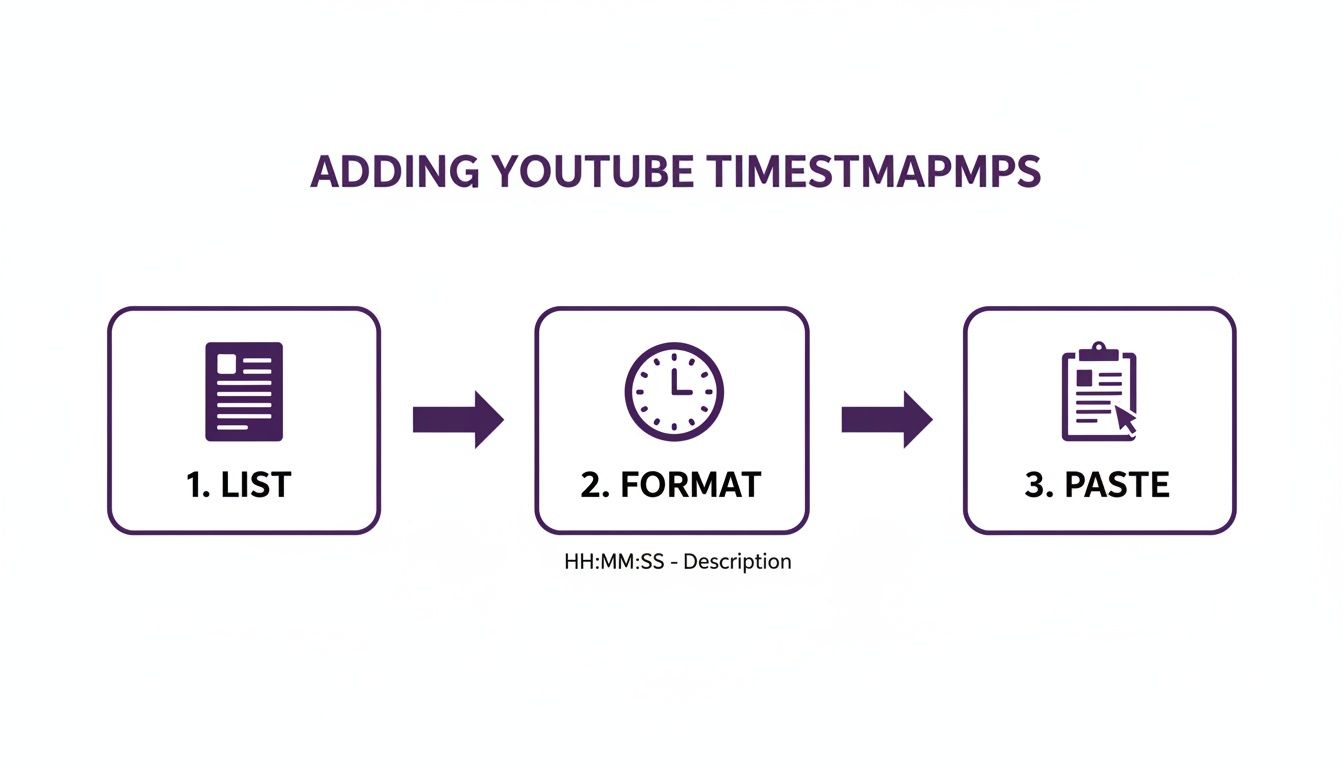
This whole workflow is pretty straightforward once you see it laid out. You're just listing your points, formatting the times, and pasting them where they need to go.
The key takeaway from this process is that the formatting is the crucial step. Get that right, and your chapters will work flawlessly every time.
Navigating the Studio Editor for Chapters
First things first, head over to your YouTube Studio and pull up the video you want to work on. From the left-hand menu, click on Editor. You’ll see your video timeline along with all the editing tools. If you already added chapters via the description, you'll see them laid out here, ready for tweaking.
Starting from scratch is just as easy.
Find the Chapters Track: Look for the "Video chapters" section right within the editor interface.
Add a New Chapter: You can either hit the "+ Add Chapters" button or just click on an empty spot in the timeline where you want a new segment to start.
Set the Timestamp and Title: The editor is smart enough to grab the timestamp from wherever your playhead is. All you have to do is type in a good, descriptive title for that section.
The best part is that you can drag the chapter markers back and forth along the timeline. This gives you frame-by-frame accuracy, which is a lifesaver for syncing chapters with specific on-screen graphics or audio cues. That immediate visual feedback is what makes the editor so much more powerful than just working with a text list.
Editing and Managing Existing Chapters
One of the biggest advantages of using the Studio Editor is that you can manage chapters on videos that are already live. There's no need to re-upload anything. You can jump into any video in your library, add new chapters, rename old ones, or delete them entirely, and the changes appear almost instantly after you save.
Think of the YouTube Studio Editor as your central command for chapter management. I regularly revisit my older, high-performing videos to add chapters. It makes them more accessible and often gives them a nice little SEO bump.
Let's say you have an old tutorial video and you notice in the comments that everyone is asking about a specific step. You can go back into the editor, create a dedicated chapter for that exact part, and make it incredibly easy for future viewers to find. It’s a small tweak that can breathe new life into your evergreen content by improving watch time and engagement.
Writing Chapter Titles That Boost Your SEO
Most creators see chapters as just a way to organize a video. That's a huge missed opportunity. In reality, your chapter titles are a powerful, often overlooked SEO tool that can seriously improve how your content gets discovered.
Think about it: each chapter title is a chance to rank for a new search query. Instead of hoping your main video title catches everything, you're creating multiple, specific entry points for viewers. This is how you start showing up for all the niche questions your video answers, not just the big-picture topic.
Treat Each Chapter as a Mini Video Title
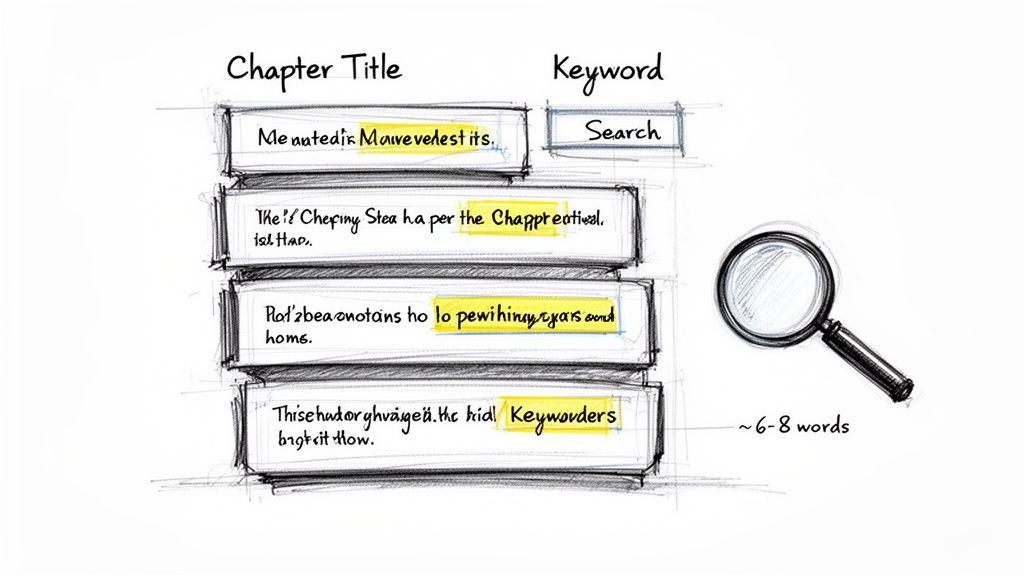
Your main video title needs to cast a wide net, but your chapter titles should be laser-focused. Each one should solve a very specific problem or answer a distinct question that someone might be searching for. This detailed approach is precisely what helps your video clips get featured in Google's "Key Moments" search results.
For example, a generic title like "Camera Features" is okay, but it's not working hard for you. A much better, SEO-driven title would be "Testing Low Light Camera Performance." Now you're targeting a long-tail keyword that a potential viewer is actually typing into the search bar.
The real secret is to get inside your audience's head. Ask yourself, "What exact phrase would someone search to find this specific part of my video?" If you can answer that, you've got a winning chapter title.
Finding the Right Keywords for Your Chapters
Keyword research isn't something you do once for your main title and then forget about. You need to apply that same mindset to every single chapter you create. It’s a bit of extra work, but it pays off big time in discoverability.
Finding good keywords isn't as hard as it sounds. Here are a few simple tricks I use all the time:
YouTube Search Autocomplete: Just start typing a topic related to one of your video segments into the YouTube search bar. Pay close attention to what it suggests, as those are real, popular searches from actual users.
Mine Your Comments: Your audience is literally telling you what they want to know. Scan your comments for specific questions; they are a goldmine for chapter title ideas.
Scope Out the Competition: Look at what top-performing videos in your niche are doing. How do they title their chapters? Note the specific phrases and keywords they're using to get ideas for your own content.
When you put this much thought into your titles, you're transforming them from simple navigation markers into a serious asset for your channel. The data backs this up, too. Chaptered videos can achieve 22% better rankings in search because YouTube’s algorithm has more SEO signals to work with. This strategy also leads to 18% more shares and a noticeable drop in bounce rates, as shown in multiple YouTube performance analyses.
By being intentional, you’re not just breaking up your video; you're strategically adding chapters to your YouTube video in a way that maximizes its reach and keeps viewers engaged.
5. Want to Save Time? Use AI to Automate Your Chapters
Manually timing out chapters works, but let's be real: it can be a serious time sink. When you're pushing out multiple videos a week, every minute spent scrubbing through footage to nail down timestamps is a minute you could be spending on your next great idea.
This is where AI tools come in. They offer a much faster, smarter way to add chapters to your YouTube video.
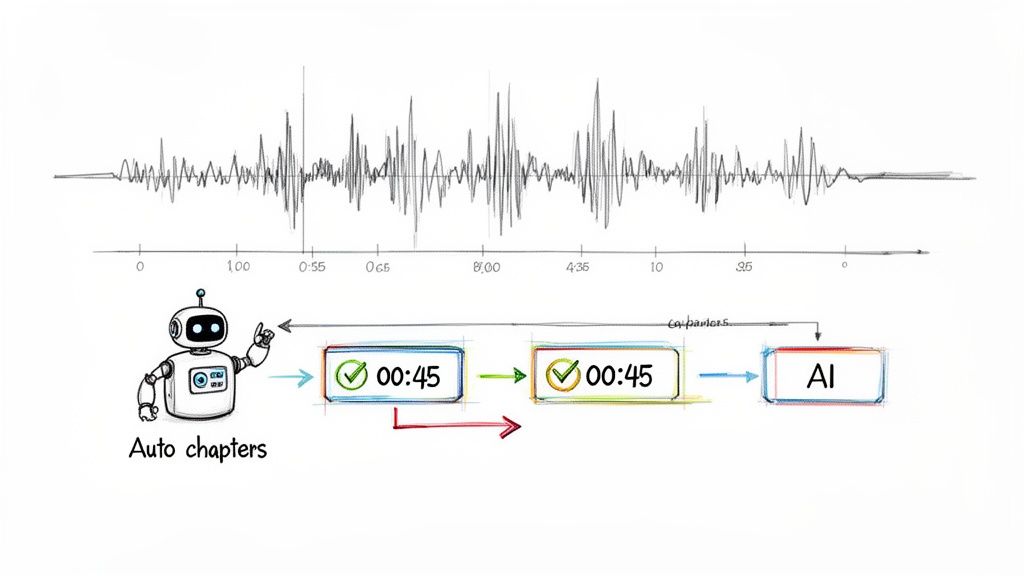
Instead of you having to do all the grunt work, these systems analyze your video's content automatically. They process the audio transcript to detect topic shifts and even look for visual cues that signal a new section is starting. What you get back is a fully generated list of chapters, complete with timestamps and suggested titles, usually in just a few minutes.
This isn't just about saving a bit of time, either. It’s about consistency. If you have a large back catalog of videos, going back to add chapters to everything is a massive undertaking. Automating the process ensures this critical UX feature never gets skipped, which makes your entire channel feel more professional and user-friendly.
So, How Does This AI Magic Actually Work?
The tech behind these tools is pretty slick. At its heart, an AI chapter generator uses natural language processing (NLP) to make sense of what's being said in your video.
It's a multi-step process, but here's the gist of it:
Transcription: First, the AI creates a full text transcript of your audio. The better the audio quality, the more accurate this transcript will be, which is key for good chapters.
Topic Segmentation: Next, the AI scans that transcript to figure out where one topic ends and another begins. It's looking for keyword shifts, natural pauses, and contextual changes that indicate a new segment.
Title Generation: Once the segments are marked, the AI comes up with a short, punchy title for each chapter based on the main ideas and keywords discussed in that part of the video.
Timestamping: Finally, it pins a precise timestamp to the start of each segment, giving you a list that’s ready to copy and paste right into your YouTube description.
This whole thing often takes just a few minutes from start to finish. The results are usually pretty solid, but I always recommend giving the AI's work a quick once-over. You might want to rephrase a title to be more click-worthy or nudge a timestamp by a second or two for perfect timing.
Bringing AI Into Your Daily Workflow
Adopting an AI tool doesn't mean you have to blow up your current production process. Most are built to slide right into your existing routine, acting more like a helpful assistant than another complicated system you have to learn.
For instance, a tool like Thumbnail Maker can analyze an uploaded video and generate chapters, descriptions, and even captions automatically. This means while you’re busy designing a killer thumbnail, the AI is handling the metadata grind in the background. If you want to streamline things even further, you can see how AI can generate your video captions.
Ultimately, letting an AI handle your chapter creation is about working smarter, not harder. It frees you up from a tedious task, cuts down on the potential for manual errors, and makes sure every single video you publish is perfectly organized for your viewers.
Common Questions (and Fixes) for YouTube Chapters
Even when you think you've done everything right, sometimes chapters just don't show up. It happens to everyone. Let's walk through some of the most common hiccups creators face and get you back on track.
"Help! My YouTube Chapters Aren't Working!"
This is the number one issue people run into, and 99% of the time, it's a tiny formatting error. Before you panic, check your timestamp list for these common culprits:
You forgot the 00:00 start time. Every chapter list must begin with a 00:00 timestamp. No exceptions.
You don't have enough chapters. YouTube requires a minimum of three timestamps for the feature to kick in.
Your chapters are too short. Each segment needs to be at least 10 seconds long.
There's a typo in the format. Using a period instead of a colon (like 01.30 instead of 01:30) is a classic mistake that will prevent chapters from appearing. A quick proofread usually solves the problem.
Can I Add Chapters to Old Videos?
Absolutely! You can go back and add chapters to any video you've already published. Just head into your YouTube Studio, find the video, and click "Details." You can then either paste your timestamp list directly into the description or use the editor to add them visually on the timeline.
Pro Tip: Adding chapters to your older, high-performing videos is a fantastic strategy. It can give that evergreen content a fresh SEO boost and make it even more helpful for viewers, often reviving its traffic.
How Do I Turn Off YouTube's Automatic Chapters?
Sometimes YouTube's AI will try to be helpful and generate chapters for you. If you'd rather use your own (or none at all), turning them off is simple.
In the video's "Details" page in YouTube Studio, scroll all the way down and click "Show More." Look for the "Automatic chapters" section and uncheck the box that says "Allow automatic chapters and key moments." Just save your changes, and the auto-generated chapters will disappear.
Do Chapters Actually Hurt Watch Time?
This is a valid concern. It feels like you're giving viewers an easy way to skip large chunks of your video. But in reality, chapters usually improve your average view duration.
Think about it: if someone is looking for a specific answer and can't find it, they'll just click away entirely. Chapters let them jump right to the part they need, keeping them on your video instead of them bouncing off to find another one. By making your content easier to navigate, you actually encourage people to stick around, which is a big win for your channel's metrics.
Tired of typing out timestamps and ready to get that time back? The AI-powered tools from Thumbnail Maker can generate accurate video chapters, titles, and descriptions for you in just a few minutes. Start your free trial at thumbnailmaker.studio
Explore 10 powerful YouTube thumbnail examples from top creators. Learn why they work and how to create your own to increase your channel's click-through rate.
Learn how to write a script for a YouTube video with this complete guide. Get actionable tips and frameworks to craft scripts that boost views and retention.