A Practical Guide to YouTube Thumbnail A/B Testing
Boost your CTR with this guide to YouTube thumbnail A/B testing. Learn how to plan, run, and analyze tests to get more views and grow your channel.
Learn More
5 min read
February 3, 2026
Learn how to change thumbnail in youtube from desktop or mobile. Pro tips to boost CTR and revive your videos with eye-catching visuals.

Written by:
Your YouTube thumbnail is your video's first impression, and frankly, it's often the only one you get. In a feed crowded with options, your thumbnail is the single most powerful tool you have to convince someone to click play instead of scrolling on.
If I've learned anything from years on the platform, it's that mastering the art of the thumbnail is the highest-leverage skill for growing a channel. It's not just about making something look nice; it's about sparking curiosity and making an implicit promise to the viewer.
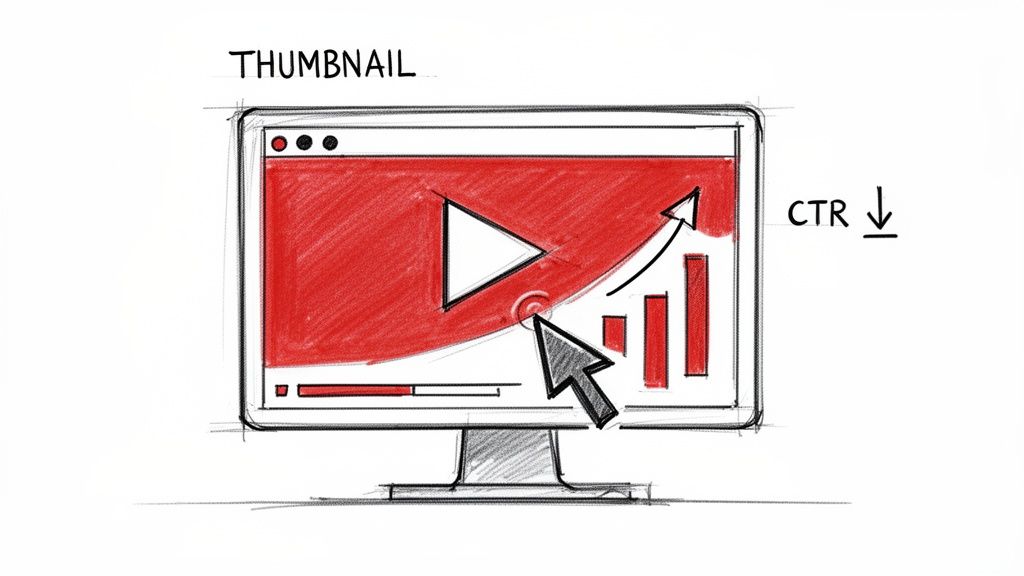
A great thumbnail directly fuels your click-through rate (CTR), the percentage of people who see your thumbnail and actually click on it. Even a tiny bump in your CTR can be a game-changer, signaling to the YouTube algorithm that your content is grabbing people's attention.
The YouTube algorithm has one main job: keep people watching. When your video has a high CTR, you're essentially telling the algorithm, "Hey, people like this!" In return, YouTube starts showing your video to more and more people. This creates a powerful growth loop.
Think about it this way: a video might be struggling with a 2% CTR. You could have the best content in the world, but it's not getting seen. By swapping out that weak thumbnail for a more compelling one, you could easily jump to a 5% CTR or even higher. I’ve seen this simple change completely revive a "dead" video, turning it into a consistent traffic driver for a channel.
This isn't just a theory; it's a well-known reality among creators. A bad thumbnail can sabotage up to 90% of your video's potential traffic. That's why successful channels obsess over their visuals.
The right thumbnail doesn’t just get one click. It’s a signal to the algorithm that helps you earn thousands more impressions over the long run.
This is exactly why so many creators rely on dedicated tools to create better visuals faster. We’ve seen firsthand how a streamlined design process can make a huge difference. Check out our breakdown of how AI can accelerate creator workflows if you're looking to speed things up.
The right thumbnail doesn't just affect one metric; it has a ripple effect across your channel's entire performance. Here’s a quick look at how a single image influences your most important analytics.
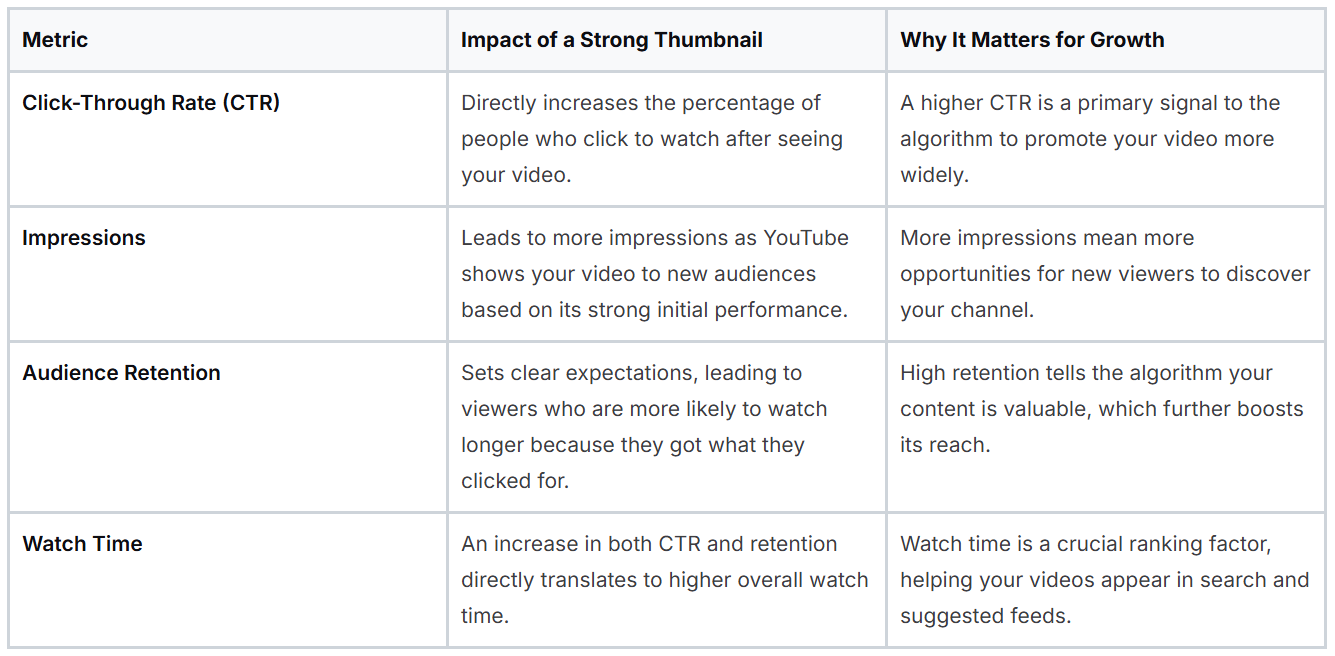
Ultimately, a well-designed thumbnail isn't just a decorative element. It's a strategic asset that drives the core mechanics of YouTube growth. Getting it right is non-negotiable.
Before you can even think about uploading that awesome custom thumbnail you just designed, there’s one small hoop YouTube needs you to jump through: account verification.
Think of it as YouTube's way of making sure you're a real human and not a spam-bot. It's a quick, one-time security check that unlocks a bunch of essential creator features. Honestly, it’s the key that lets you move beyond the basics and start treating your channel like a real brand.
If you skip verification, you'll be stuck choosing from three random, often unflattering, frames that YouTube automatically pulls from your video. Every creator has been there. You get a blurry shot of you mid-sentence or a frame that completely misses the point. Getting verified gives you back the creative control you need.
The whole process is painless and takes less than five minutes. All YouTube asks for is a phone number to link to your channel. It's a simple step that helps keep the platform clean and holds creators accountable.
YouTube actually classifies custom thumbnails as an "intermediate feature." So, getting verified doesn't just unlock thumbnails. It also gives you the ability to upload videos longer than 15 minutes and go live.
Ready to get it done? Just head over to YouTube's verification page at youtube.com/verify.
From there, it’s a simple four-step process:
And that's it! You’re in. If for some reason the code doesn't arrive or you hit an error, just double-check that you typed the phone number correctly and try requesting it again.
When it comes to managing your channel, YouTube Studio on a desktop is your command center. It’s the most straightforward way to handle your video thumbnails, whether you're uploading a brand-new video or trying to breathe new life into an older one by swapping out the artwork.
You'll generally find yourself in one of two situations: either setting the thumbnail during the initial upload or going back to change one later. Thankfully, YouTube handles both scenarios in the exact same place, the video details editor, so the process is always familiar. The trick is just knowing where to click.
First things first, log into your YouTube Studio. Once you're on the main dashboard, your eyes should go to the left-hand menu. Find and click on the “Content” tab. This is where you’ll see a complete list of every video you’ve ever uploaded, including drafts and scheduled posts.
Now, find the video you want to update. As you hover your mouse over its title, you'll see a little pencil icon pop up that's your 'edit' button. Clicking it takes you straight to the “Video details” page. This is the hub for all your video’s metadata: title, description, tags, and of course, the thumbnail.
I've seen so many creators get lost trying to find this setting. Just burn this path into your memory: Studio > Content > Details > Thumbnail. After you do it a couple of times, it becomes pure muscle memory.
Right below your video's description, you'll find the "Thumbnail" section. This is where the magic happens.
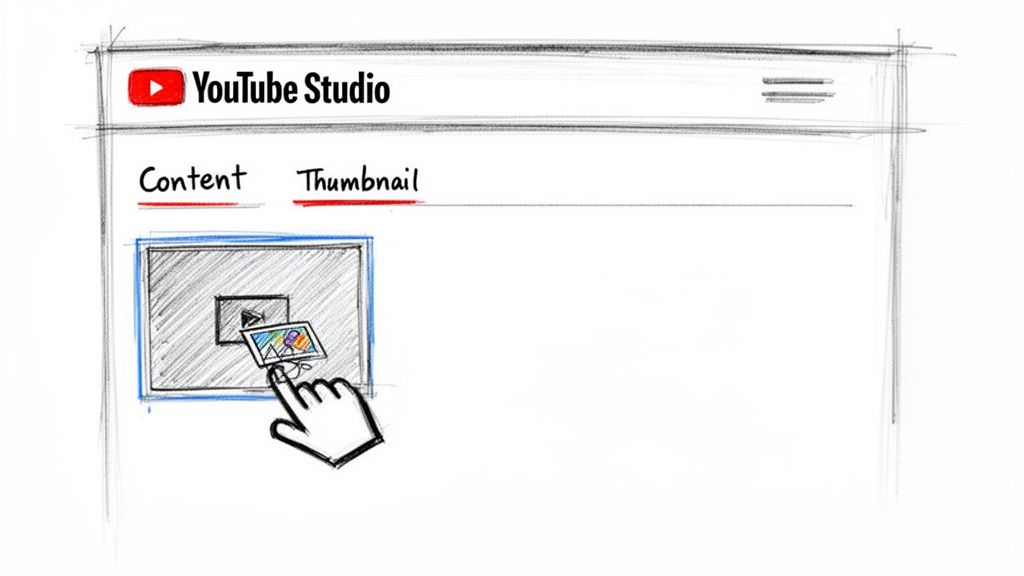
YouTube will offer three auto-generated (and usually unflattering) stills from your video, but you'll want to focus on the box that lets you upload your own custom image.
Once you’ve uploaded your new graphic, don't forget the final, crucial step: hit the blue “Save” button in the top-right corner. If you click away without saving, all your work will be gone. That’s really all it takes to change a thumbnail on YouTube. And if you're looking to create better visuals faster, see for yourself how Thumbnail Maker works.
For creators who are always on the move, the YouTube Studio mobile app is an absolute lifesaver. It lets you manage your channel from just about anywhere, including making a quick thumbnail swap right from your phone.
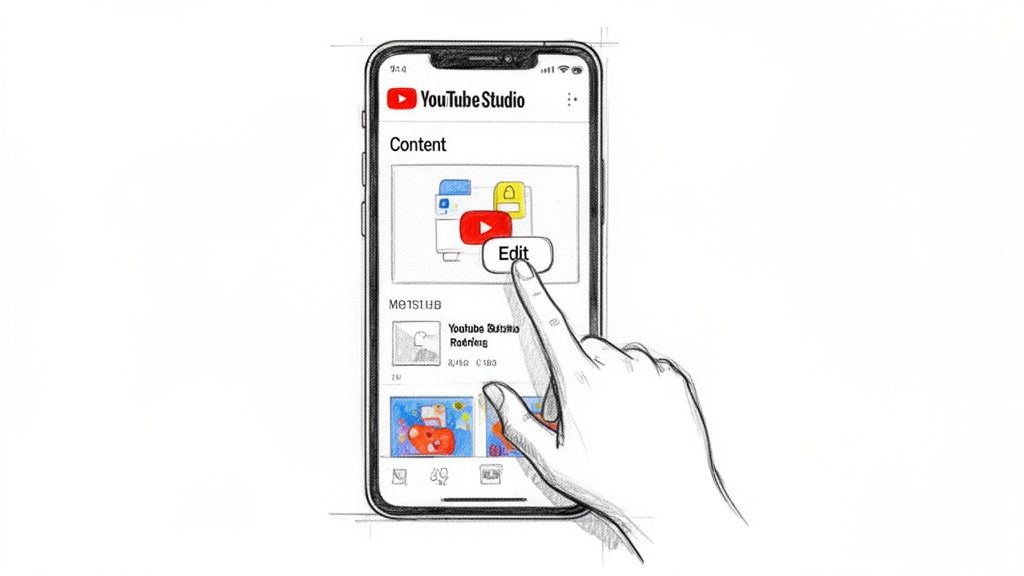
This kind of flexibility is a huge deal. Think about it: if you're a vlogger capturing content in real-time or a manager who sees a chance to improve a video's performance while away from the office, you can act immediately. The process is straightforward and feels a lot like the desktop version, just sized for your screen.
Being able to update thumbnails from your phone is a game-changer. Imagine you've just published a video and notice the click-through rate is tanking. You can design and upload a new thumbnail from your phone in minutes, potentially rescuing the video's performance before you even get back to a computer.
The mobile workflow is built for speed. Once you have the YouTube Studio app on your phone and you're logged in, you’re just a few taps away from getting that new thumbnail live.
Here’s how it’s done:
Anyone can slap some text on a picture and call it a day, but crafting a thumbnail that truly makes people need to click? That's a whole other ballgame. It's part art, part science, and getting it right can completely change your channel's growth. This is your first and often only chance to convince both a potential viewer and the YouTube algorithm that your video is the one to watch.
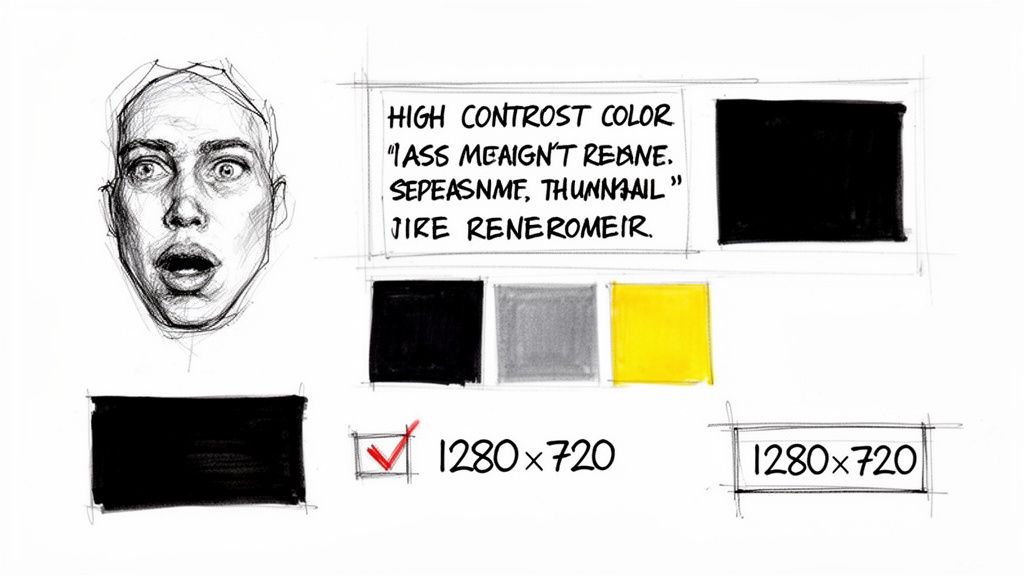
Before you even think about colors and fonts, let's get the boring-but-critical technical stuff out of the way. Your thumbnail has to look crisp and clean everywhere, from a 65-inch TV down to a smartphone screen.
These specs are your foundation. A blurry or poorly sized thumbnail just screams amateur, and it can tank your click-through rate before anyone even reads your title.
Alright, with the technicals handled, we can get to the fun part. Your mission is to create a tiny visual story that sparks an emotional reaction and is understood in a split second.
One of the most effective tricks in the book? Use a human face showing a strong, clear emotion. We are hardwired to connect with faces, and I've seen countless thumbnails with expressive faces outperform those without. Pair that with bold, high-contrast colors like bright yellows, deep blues, or vibrant reds to make your thumbnail leap off the screen in a sea of beige.
The YouTube algorithm is watching. It tracks how people react to your thumbnails, and the data is clear: creators who learn how to effectively change a thumbnail in YouTube can boost their click-through rates by 10-15%. And those thumbnails with expressive faces? They've been shown to outperform others by as much as 30% because of that instant emotional hook. You can dig deeper into the YouTube thumbnail algorithm to see how it all works.
Finally, add just a few words of text. Keep it short and punchy. Use a clean, bold font that’s easy to read on a tiny screen. This text isn't a summary; it's a hook. Think of it as a mini-headline that asks a question or promises a result, making the click feel irresistible.
Let's be honest, manually designing thumbnails can be a real drag. When you’re trying to get content out the door, spending an hour fussing with a design feels like a huge bottleneck. This is where an AI-powered workflow completely changes the game, cutting that design session down to just a few minutes of polish.
Instead of starting from a blank screen, tools like Thumbnail Maker do the heavy lifting for you. It can analyze your video, find the most compelling frames where your face is clear and expressive, and even automatically cut out the background. You’re essentially starting with a nearly finished thumbnail.
From that point, it’s all about making it your own. You can easily swap in a different background, pop in some branded text, and tweak the colors to fit your channel's vibe. The idea is to get several great-looking options on the table, fast. You can learn more about how to create AI-generated thumbnails with just a few clicks.
With an AI tool in your corner, you can create two completely different, A/B test-ready designs in less than five minutes. Seriously. Once you pick a winner (or two to test), you just download the file and upload it straight into YouTube Studio. The whole process, from video analysis to a live thumbnail, is incredibly quick.
This kind of speed makes it practical to test and fine-tune the visuals for every single video you post.
The right thumbnail can make or break a video's performance. One creator saw a brand-new video pull in 1,000 views per hour with an 11% CTR, while an older video was stuck at a disappointing 6.7%. I've personally seen creators turn 5% CTR duds into 12% winners practically overnight just by updating the thumbnail.
This efficiency means you can react to your analytics in real-time. If you see a video’s CTR is tanking, you don’t have to wait. You can jump in, generate a new thumbnail, and get it live in minutes, giving your content a second shot at grabbing the algorithm's attention.
Even seasoned creators run into snags now and then when swapping out thumbnails. If you’re hitting a wall, it’s usually one of a few common issues. Let's walk through the most frequent questions that pop up.
This is almost always an account verification issue, especially for newer channels. If you can't click the custom thumbnail button, it means YouTube needs you to verify your account with a phone number.
Think of it as YouTube's way of making sure you're a real person. Once you complete this one-time step, the feature unlocks, and you'll have full control over your video's first impression.
Patience is key here. Most of the time, the change is practically instant. But sometimes, it can take a few minutes or even up to an hour for YouTube's servers to catch up and display the new image everywhere.
So, if you've uploaded it and don't see the change in search results or your subscription feed right away, don't worry. Just give it a little time to propagate across the platform.
Does changing a thumbnail affect the algorithm? Absolutely, and it's a powerful tool in your arsenal. If a video has a low click-through rate (CTR), swapping in a better thumbnail gives it a fresh shot at grabbing attention. A higher CTR tells the algorithm that people are interested, which can lead to YouTube showing your video to more viewers.
And yes, you can go back and change the thumbnail on any video, anytime. It doesn't matter if it was published yesterday or five years ago.
Ready to create thumbnails that get noticed? With Thumbnail Maker, you can design high-performing, AI-powered visuals in just a few minutes. Start your free trial today.




Boost your CTR with this guide to YouTube thumbnail A/B testing. Learn how to plan, run, and analyze tests to get more views and grow your channel.
Learn how to write a script for a YouTube video with this complete guide. Get actionable tips and frameworks to craft scripts that boost views and retention.
Discover whats a thumbnail and learn simple design tweaks that boost views and entice viewers to click.