A Practical Guide to YouTube Thumbnail A/B Testing
Boost your CTR with this guide to YouTube thumbnail A/B testing. Learn how to plan, run, and analyze tests to get more views and grow your channel.
Learn More
5 min read
February 3, 2026
Discover the best video editing software for YouTube. Our in-depth guide covers 12 top tools for creators, from free options to pro-level suites.

Written by:
Finding the right video editing software for YouTube can feel overwhelming. With so many options available, each promising professional results, it's tough to determine which one truly fits your specific workflow, budget, and current skill level. The tool you choose directly impacts your video's final quality, your production speed, and ultimately, your channel's growth. A poor fit leads to frustrating bottlenecks, while the right software makes creating content feel seamless and efficient.
This guide is designed to cut through the marketing noise and provide a clear, practical roadmap. We will break down the top video editors for creators today, analyzing their real-world strengths, hidden weaknesses, and ideal use cases. Whether you're a beginner launching your first channel or a seasoned creator looking to streamline your process, this resource will help you make an informed decision. We will explore everything from industry-standard powerhouses like Adobe Premiere Pro and DaVinci Resolve to fast, AI-driven editors perfect for social content, such as CapCut and Descript.
Our goal is to help you find the perfect match to create compelling content that captivates your audience and keeps them coming back. Each recommendation in this list includes key feature analysis, pricing details, and honest pros and cons to simplify your choice. We also provide direct links and screenshots to give you a clear look at each platform's interface. By the end of this article, you will have the clarity needed to select the best video editing software for your YouTube journey and start producing higher-quality videos faster.
Adobe Premiere Pro stands as the industry-standard nonlinear editor, making it an exceptional choice for YouTube creators aiming for a polished, professional output. Its deep integration within the Adobe Creative Cloud ecosystem is its most significant advantage. Creators can seamlessly move assets between Premiere Pro, After Effects for complex motion graphics, Audition for advanced audio cleanup, and Photoshop for detailed image work. This cohesive workflow streamlines production for channels that require high-quality visuals and sound.
Premiere Pro is a powerhouse of features, but for YouTubers, its AI-driven tools are game-changers. The Text-Based Editing feature allows you to edit video by simply editing a text transcript, which is perfect for interview-style or talking-head content. Additionally, its Auto Reframe tool intelligently adjusts your sequences for different social media aspect ratios (like 16:9 for YouTube and 9:16 for Shorts) without losing the focal point of the action. The robust captioning tools, with auto-transcription and extensive customization, are vital for accessibility and engagement.
Access to Premiere Pro is via a subscription model, either as a single app (around $22.99/month) or as part of the Creative Cloud All Apps plan. While the cost is a significant consideration, the investment pays off for serious creators. The learning curve is steeper than beginner-friendly software, but the vast amount of online tutorials, courses, and third-party plugins makes mastering the platform achievable. Once your edit is complete, remember that a compelling thumbnail is crucial for clicks; you can learn how to make great YouTube thumbnails to complement your professional video.
For creators deeply embedded in the Apple ecosystem, Final Cut Pro offers a powerful and highly optimized video editing experience. Its primary advantage is its seamless performance on macOS, especially on Apple Silicon (M-series) Macs, where it delivers incredibly fast rendering and smooth playback of high-resolution footage. This efficiency makes it a top choice for YouTubers who need to turn around content quickly without being bogged down by technical delays.
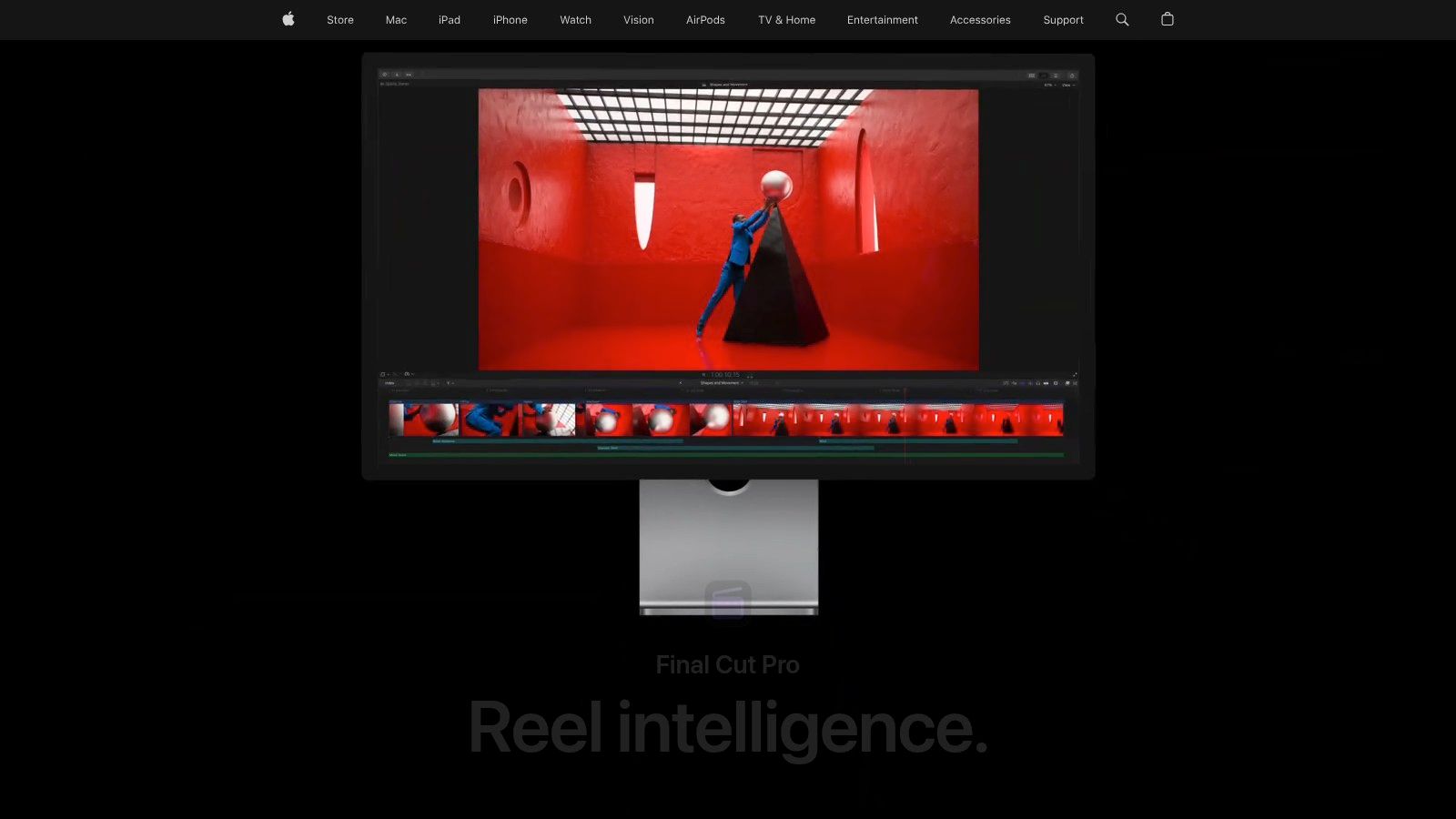
Final Cut Pro's standout feature is its Magnetic Timeline, which intelligently moves and trims clips to avoid sync issues and gaps, speeding up the assembly process. This is perfect for vloggers and tutorial creators who do a lot of jump cuts and B-roll placement. The software also integrates tightly with Apple's other pro apps, Motion for graphics and Compressor for advanced encoding, creating a cohesive production suite. With built-in support for HDR, 360-degree video, and direct export to YouTube, it covers the full spectrum of modern content creation needs.
A major draw for many is its pricing model. Final Cut Pro is available as a one-time purchase of $299.99, which can be more cost-effective long-term than a subscription. While there's a learning curve, particularly for those used to traditional track-based editors, its intuitive design is generally considered easier to grasp than Premiere Pro for newcomers. However, its biggest limitation is its exclusivity to macOS, which is a dealbreaker for PC or cross-platform users.
DaVinci Resolve has evolved from a Hollywood-standard color grading tool into an all-in-one post-production suite, making it a powerful contender for the best video editing software for YouTube. Its most compelling feature is its free version, which offers more professional-grade tools than most paid software, including advanced editing, visual effects, motion graphics, and audio post-production. This makes it an incredibly attractive option for creators who want to grow into a professional workflow without an initial financial commitment.
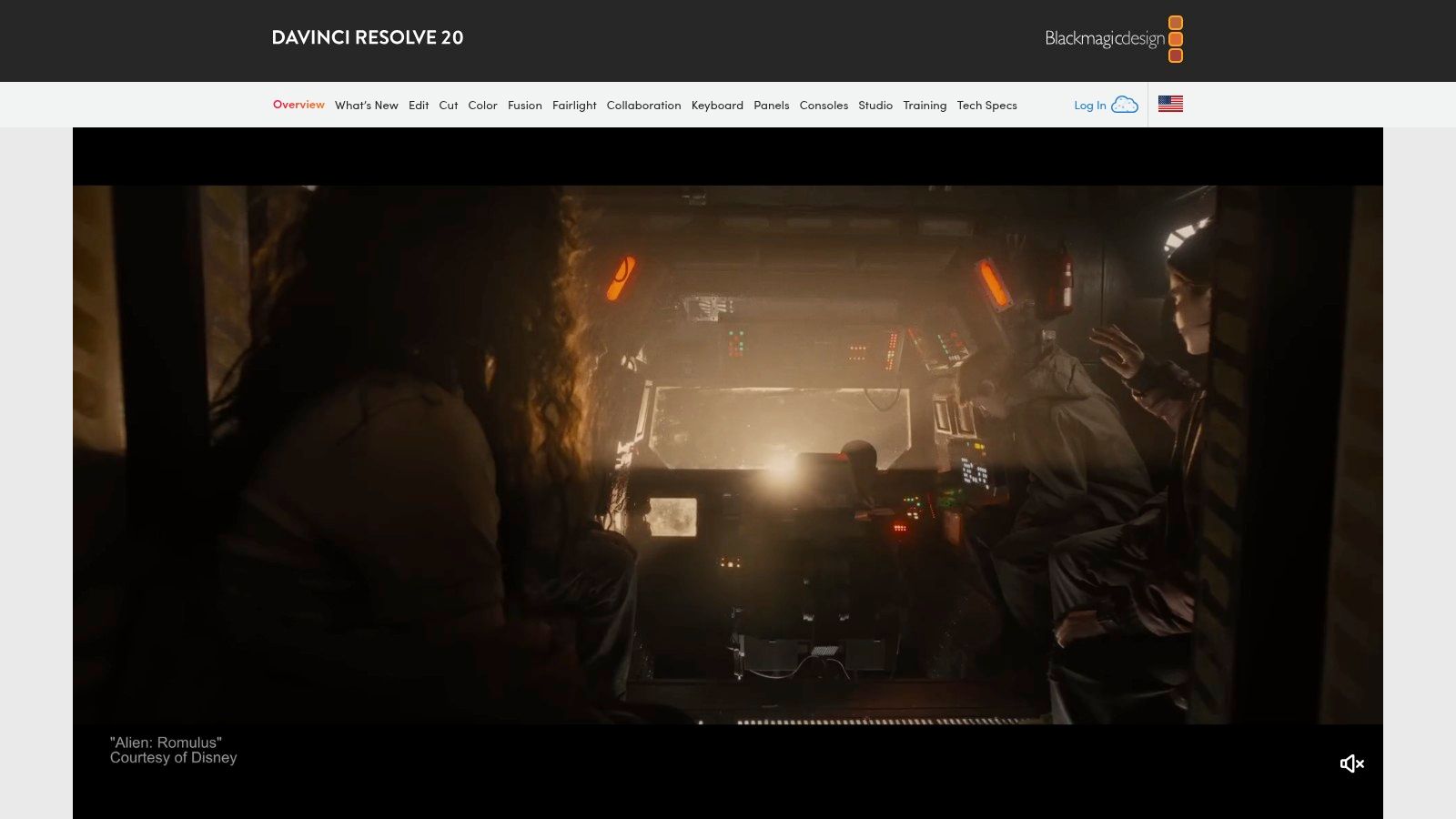
Resolve is organized into "Pages," dedicated workspaces for different tasks. YouTubers will spend most of their time on the Cut and Edit pages for assembly and fine-tuning. The true power lies in its integrated Fusion page for node-based VFX and the Fairlight page for a full audio mixing suite. Its legendary Color page provides unparalleled control over color correction and grading, allowing creators to achieve cinematic looks that stand out. The built-in transcription and auto-subtitle features are also excellent for creating accessible content and generating video chapters.
The free version of DaVinci Resolve is remarkably full-featured and sufficient for most YouTubers. The upgrade to DaVinci Resolve Studio is a one-time purchase of around $295, unlocking advanced features like GPU acceleration for specific effects, AI tools, and higher resolution support. While the basic editing is intuitive, mastering the Fusion, Fairlight, and Color pages presents a significant learning curve, especially for those new to node-based workflows. After exporting your video, you can add YouTube chapters to your description to improve viewer navigation and engagement.
CapCut has exploded in popularity, transitioning from a mobile-first app to a full-fledged cross-platform video editing software for YouTube creators. Its primary advantage is its seamless, cloud-synced workflow that lets you start a project on your phone and finish it on your desktop or web browser. This flexibility is perfect for creators who need to produce content quickly, especially for short-form video like YouTube Shorts, where speed and trending templates are key.
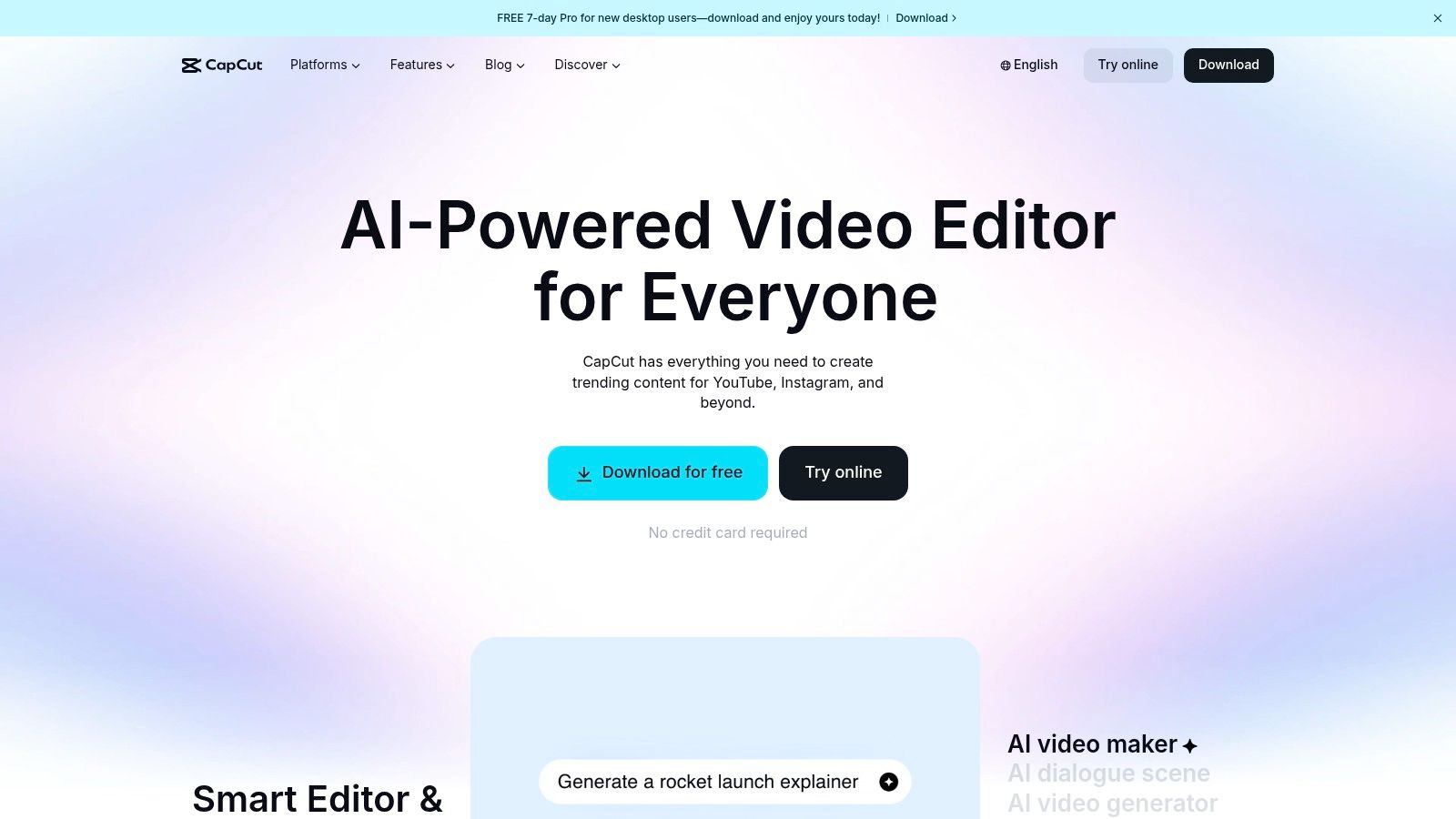
For YouTubers, CapCut’s AI-powered features significantly accelerate the editing process. Its one-click Auto-captions tool generates trendy, animated subtitles that boost engagement on Shorts and long-form content alike. The platform also offers remarkably effective tools like background removal without a green screen, AI voiceovers, and a vast library of trending effects, transitions, and royalty-free music. This makes it an ideal choice for reaction videos, tutorials, and vlog-style content where visual flair can be added with minimal effort.
CapCut offers a very generous free tier that includes most of its core features, making it one of the most accessible options available. A Pro subscription (pricing varies but is generally around $7.99/month) unlocks advanced features, more cloud storage, and premium effects. The learning curve is exceptionally low, with an intuitive interface that feels familiar to social media users. However, users have reported some friction with subscription management, so it is wise to carefully review the terms in-app before purchasing.
Wondershare Filmora strikes a perfect balance between user-friendliness and powerful features, making it a top contender for YouTube creators who want a straightforward editing experience without sacrificing creative control. Its clean, intuitive interface lowers the barrier to entry, while its growing suite of AI tools and vast library of built-in effects empower users to produce high-quality content efficiently. Filmora is an excellent piece of video editing software for YouTube channels focused on vlogs, tutorials, and lifestyle content.
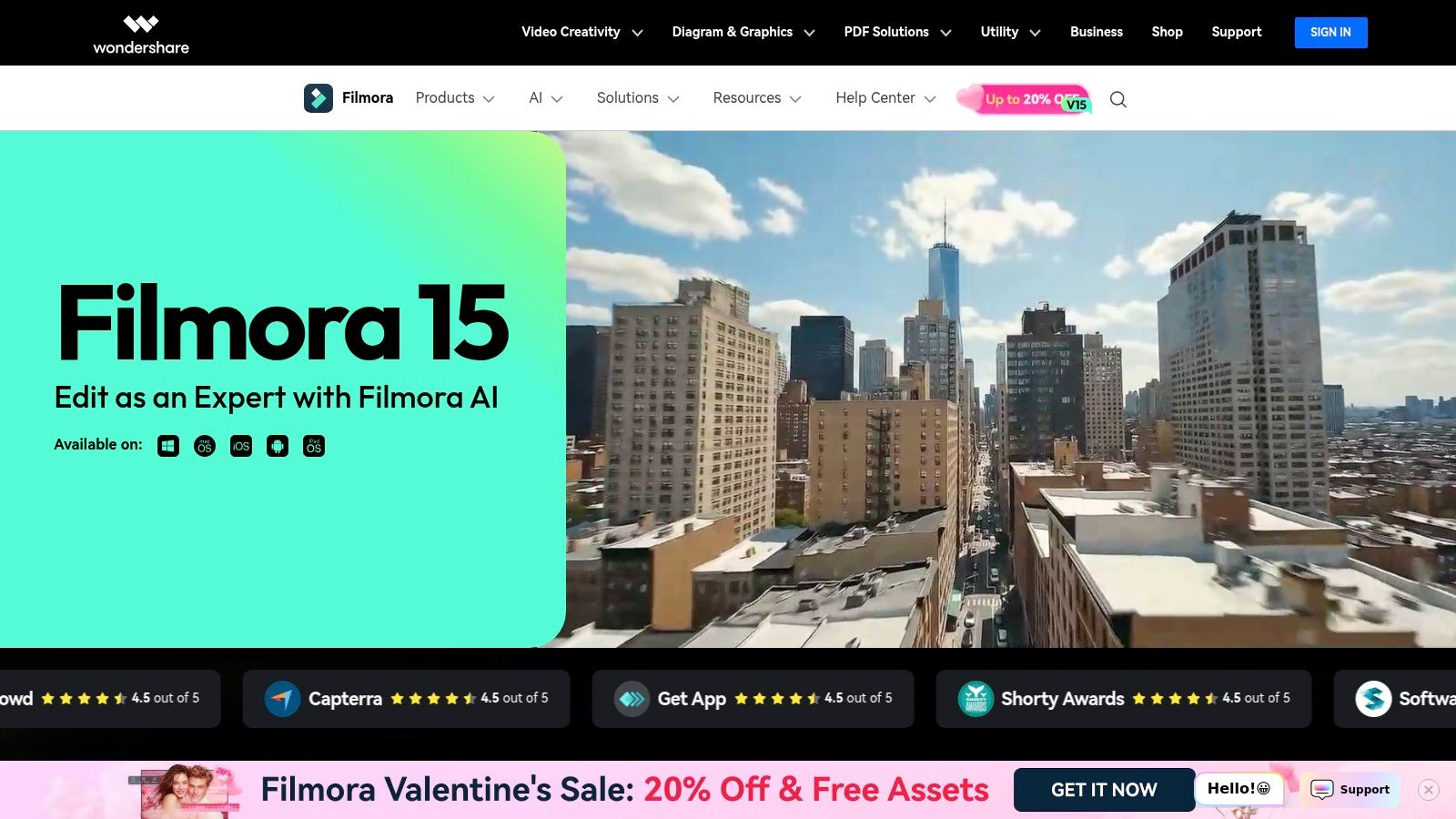
Filmora is packed with features designed to accelerate the YouTube workflow. Its AI Copilot Editing acts as an intelligent assistant, while tools like AI Smart Cutout and Silence Detection automate tedious tasks, letting you focus on the creative aspects. The software gives you direct access to Filmstock, a massive library of effects, stock footage, and audio tracks to enhance your videos. The one-click auto-subtitle generator is another significant time-saver, improving both accessibility and viewer retention.
Filmora offers flexible pricing with both subscription plans (starting around $29.99 quarterly) and a perpetual license option, which is a rare and welcome choice for creators who prefer to own their software. While the initial learning curve is minimal, some of its premium assets and effects are locked behind separate subscriptions, which can be a point of confusion. Once your video is complete, pairing it with optimized titles and descriptions is key. You can discover how AI tools like Taja for Creators can streamline this process to boost your video's reach.
CyberLink PowerDirector strikes an excellent balance between professional-grade features and user-friendly design, making it a strong contender for YouTubers who have outgrown basic editors but aren't ready for a complex professional suite. Its reputation is built on fast rendering speeds and reliable performance, even on mid-range PCs, which is a significant advantage for creators who need to produce content efficiently without investing in high-end hardware. The software consistently receives updates, especially for subscribers, ensuring access to modern tools.
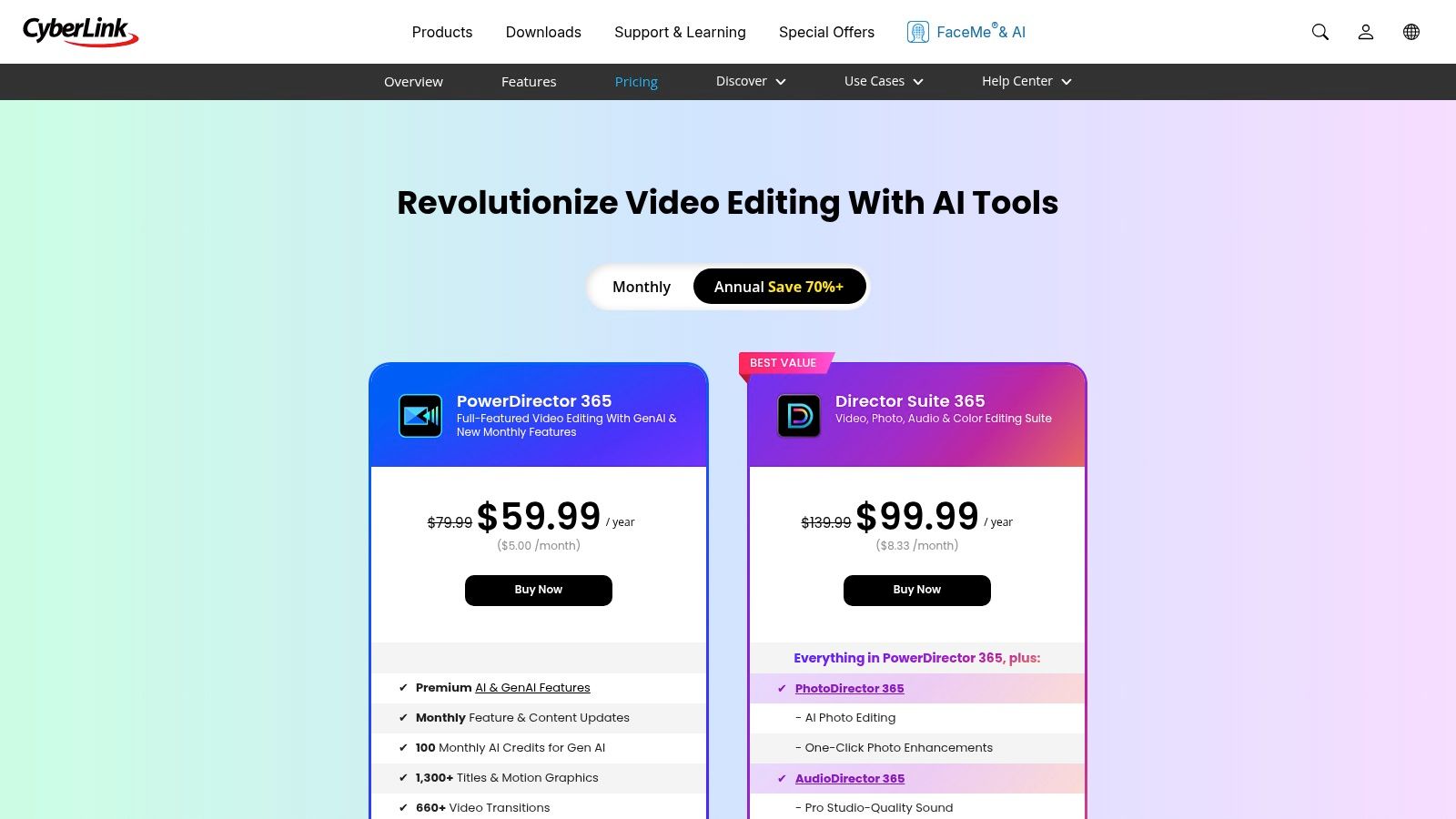
For YouTube creators, PowerDirector's AI-driven tools are a major draw. Features like AI Sky Replacement and AI Object Detection simplify complex edits that would otherwise require manual masking. Its new generative AI tools can create unique stickers and image backgrounds, adding a creative flair to vlogs or tutorial videos. The software also includes a vast library of effects, transitions, and title templates, which helps creators maintain a high production value with minimal effort. The optional stock asset library integration with Getty Images is a bonus for channels that frequently need b-roll footage.
PowerDirector offers flexible licensing that caters to different budgets. You can choose a perpetual license (a one-time purchase) or a PowerDirector 365 subscription (starting around $5.83/month), which provides continuous updates and access to a larger library of effects and stock assets. While the 365 plan offers the most value, be aware that some AI features may require additional credit packs. The learning curve is gentler than professional editors, with an approachable interface that helps new users get started quickly.
VEGAS Pro is a long-standing and powerful video editing software for YouTube creators who work exclusively on Windows. It's renowned for its highly efficient timeline-centric workflow and robust, integrated audio editing capabilities, which come from its origins as an audio workstation. Its most distinguishing feature in a subscription-dominated market is its flexible licensing, offering both perpetual licenses and subscriptions to suit different budgets and user preferences.
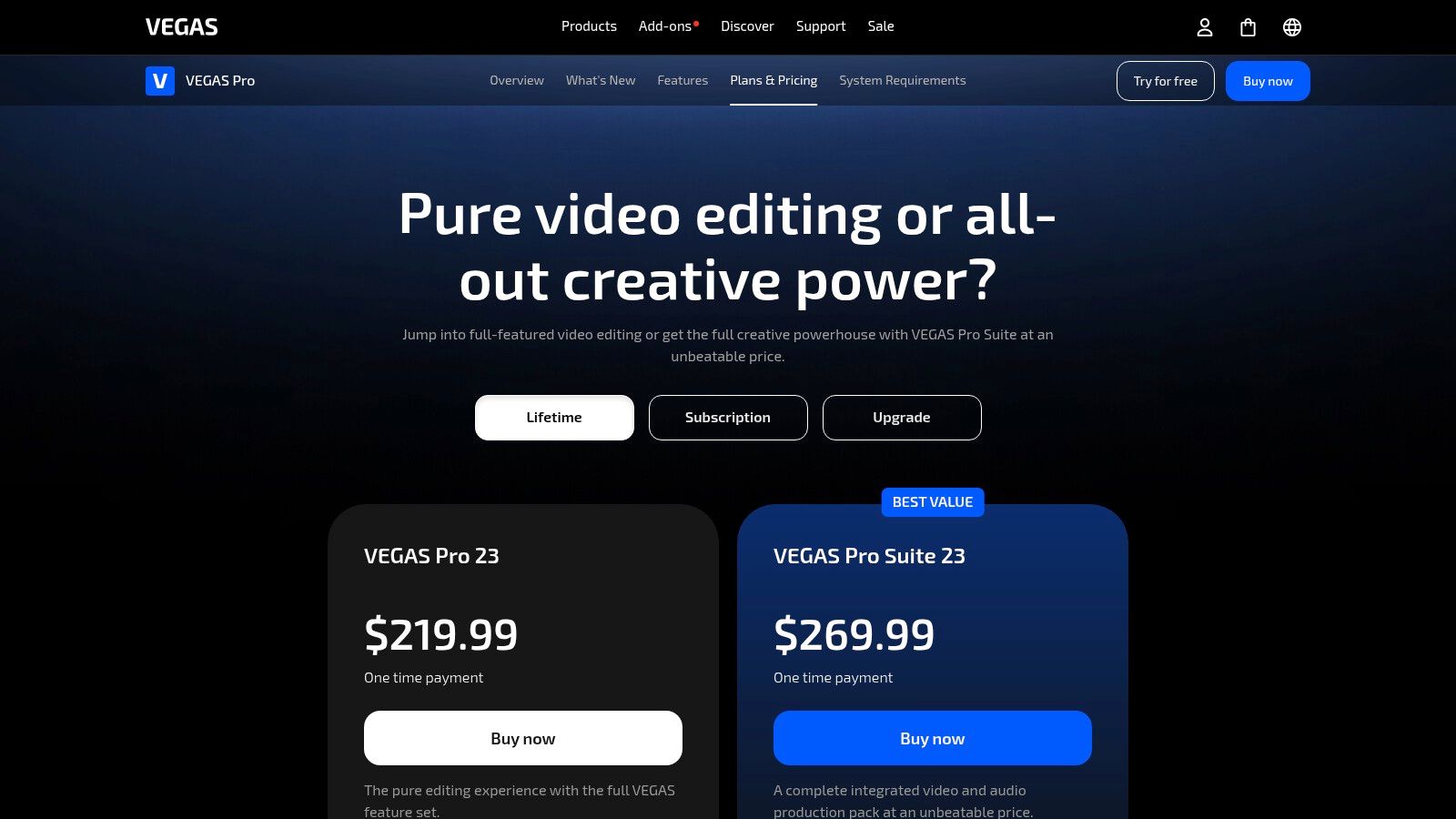
VEGAS Pro shines in its audio handling, providing an advanced toolset without needing to round-trip to separate audio software. This is a massive advantage for creators whose content is audio-dependent, like musicians, podcasters, or commentators. The higher-tier subscription plans also include AI-powered text-to-speech and speech-to-text features, which are excellent for generating voiceovers and captions quickly. The software's timeline is famously flexible, allowing for quick cuts, trims, and arrangements that can significantly speed up the editing process for vlogs and gameplay videos.
VEGAS Pro offers three main tiers: Edit, Suite, and Post, available via subscription (starting around $12.99/month) or a one-time perpetual license purchase. The subscription provides access to the latest updates, cloud storage, and AI features, while the perpetual license is a great option for those who prefer to own their software outright. The interface can feel a bit dated compared to rivals, and its learning curve is moderate. It is less intuitive for absolute beginners than some alternatives, but its logical layout is appreciated by those who master it. Be aware that the feature set varies significantly between tiers, so carefully review what each plan includes.
Descript revolutionizes the editing process for content that is heavily speech-driven, positioning itself as a "word processor for video." Its core concept is text-based editing, where you manipulate video by editing an automatically generated transcript. This approach dramatically speeds up the workflow for YouTubers creating podcasts, tutorials, commentary videos, and talking-head content, making it an indispensable piece of video editing software for YouTube creators focused on efficiency.
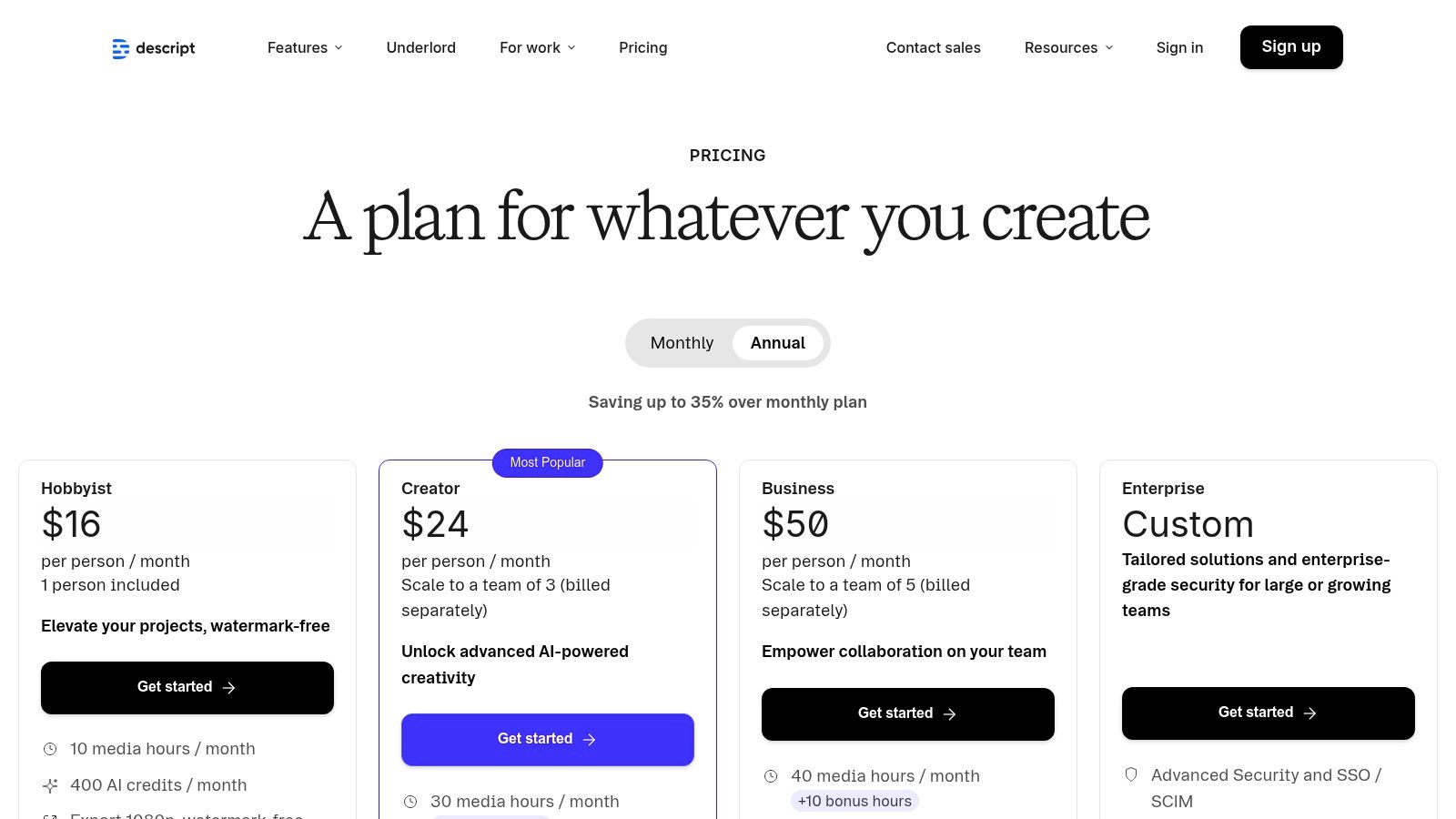
Descript's standout feature is its AI-powered workflow. The Text-Based Editing lets you cut, copy, paste, and delete parts of your video by simply editing the text, which is ideal for creating rough cuts in minutes. Its AI-powered Studio Sound enhances voice recordings to a professional, studio-like quality with a single click. For repurposing content, you can use AI to generate Quick Clips and summaries for social media. Features like Remove Filler Words automatically detect and eliminate "ums" and "ahs," saving hours of tedious manual work.
Descript offers a tiered subscription model, including a free plan with basic features and watermarked exports. Paid plans (Creator, Pro, and Business) start around $12/month per user (billed annually) and offer more transcription hours, watermark-free 4K exports, and access to advanced AI features. The learning curve is exceptionally low for anyone familiar with a word processor. While it's not designed for complex visual effects, its strength lies in its speed and simplicity for dialogue-focused videos.
Movavi Video Editor is engineered for speed and simplicity, making it a fantastic piece of video editing software for YouTube creators who need to produce content quickly without a steep learning curve. Its strength lies in an intuitive interface packed with AI-powered, one-click tools that streamline common editing tasks. For YouTubers focused on vlogs, tutorials, or reaction videos, Movavi removes technical barriers, allowing them to focus on content rather than complex software.
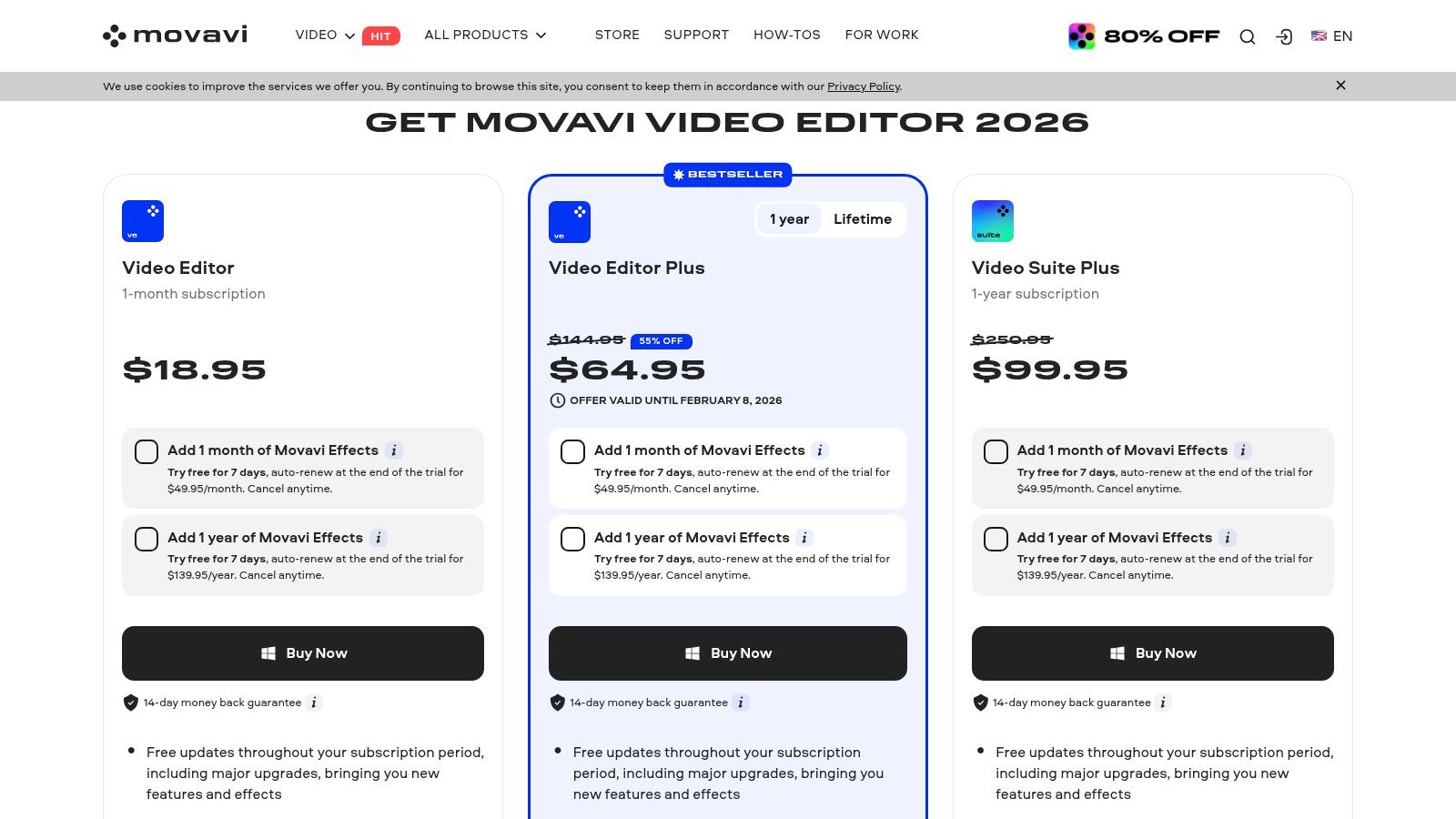
Movavi excels at automating time-consuming edits. The one-click silence removal is a huge time-saver for talking-head videos, instantly tightening up pacing. Similarly, the auto-subtitles feature generates captions quickly, boosting accessibility and viewer retention. Its vast library of effects packs, transitions, and titles allows for easy creative expression, while social media export presets ensure your videos are perfectly formatted for YouTube and other platforms right out of the editor.
Movavi offers several purchasing options, typically as a one-time purchase or annual subscription, with frequent discounts available. The Video Editor Plus version is a popular choice, providing a great balance of features and affordability (often around $54.95 for a 1-year license). The learning curve is one of the lowest available, making it ideal for absolute beginners. While the trial version includes a watermark, the straightforward purchase process and clear refund policy make it a low-risk option for new creators.
Microsoft Clipchamp has emerged as a surprisingly capable and accessible video editing software for YouTube, especially for creators integrated into the Windows ecosystem. As a browser-based platform that is also built directly into Windows 11, it eliminates the need for hefty software installations. Its primary advantage is its simplicity and speed, making it ideal for YouTubers who need to produce quick, clean edits for vlogs, tutorials, or social media content without a steep learning curve.
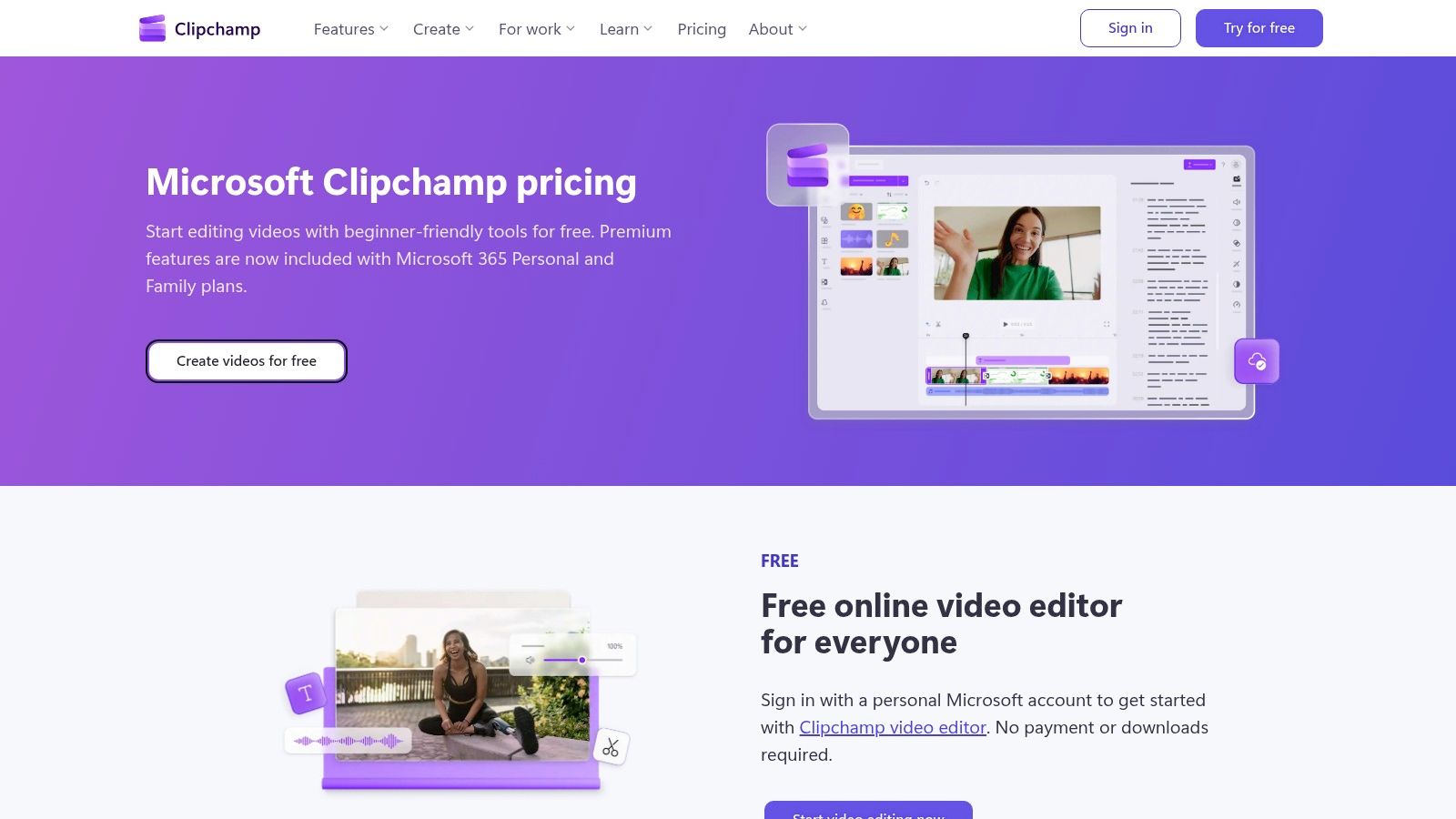
Clipchamp shines with its user-friendly, template-driven approach. For YouTube creators, features like brand kits allow you to maintain consistent branding with logos, fonts, and colors across all videos. Its AI-powered features, such as Auto Compose, can help assemble clips with music and transitions automatically, which is a massive time-saver for creating short-form content like YouTube Shorts. The built-in library of stock video, audio, and graphics provides ample resources to enhance your content without leaving the editor.
Clipchamp offers a compelling free tier that allows unlimited watermark-free exports up to 1080p, which is perfect for beginners. The premium features, including 4K exports, premium stock assets, and content backup, are unlocked with the Premium plan (around $11.99/month). Notably, these premium features are often included with a Microsoft 365 Personal or Family subscription, making it an excellent value for existing users. The learning curve is minimal; its drag-and-drop interface is highly intuitive, making it one of the easiest platforms to start with.
For creators embedded in the Apple ecosystem, iMovie is the quintessential starting point for video editing. Included for free on every Mac, iPhone, and iPad, it offers an incredibly intuitive interface that removes the initial friction of learning complex software. Its standout quality is its seamless integration across Apple devices, allowing you to start an edit on your iPhone and finish it on your Mac, making it perfect for on-the-go vlogging and content creation.
iMovie simplifies the editing process with features like Magic Movie and Storyboards, which automatically assemble clips, transitions, and music for YouTubers needing to produce content quickly. It capably handles core editing tasks, supporting 4K video, picture-in-picture effects, and even basic green screen compositing for creators experimenting with more advanced techniques. A key advantage for growing channels is the ability to seamlessly hand off a project to Final Cut Pro, providing a clear upgrade path when more professional tools are needed without starting from scratch.
iMovie is completely free for all Apple users, making it one of the most accessible and powerful pieces of free video editing software for YouTube available. The learning curve is practically nonexistent; its drag-and-drop functionality and clean layout are designed for absolute beginners. While it lacks the deep customization and third-party plugin support of paid software, its simplicity is its strength. It provides all the essential tools to produce high-quality YouTube videos without any financial investment or steep learning commitment.
For creators who prefer purchasing software through a trusted major retailer, Best Buy offers digital redemption codes for popular video editing software for YouTube like Adobe Premiere Elements. This option is ideal for U.S. based buyers who want to leverage Best Buy’s customer service, reward programs, and straightforward checkout process. Instead of navigating a software developer's site, you can complete the purchase within a familiar ecosystem, often with instant digital delivery of your license key.
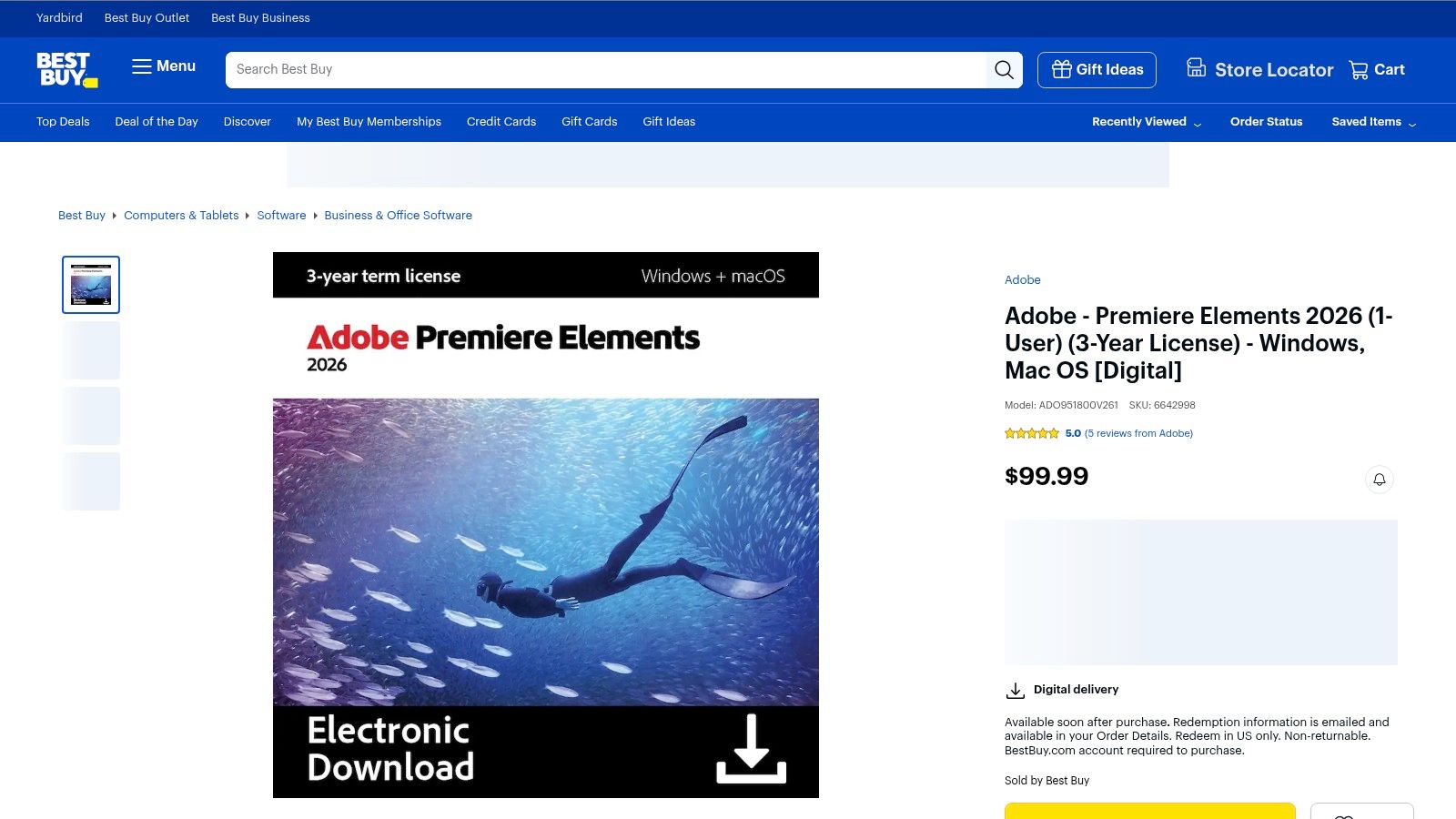
The primary product here for YouTubers is Adobe Premiere Elements, a user-friendly editor perfect for beginners. Its standout feature is Guided Edits, which walk you through creating popular effects like slow motion, animated overlays, and time-lapses. This makes it simple to add professional-looking touches to your videos without a deep technical understanding. The software also includes AI-powered tools like Smart Trim to find your best footage and Auto Reframe to adapt your video for different social platforms, which is a significant time-saver.
Premiere Elements is typically sold as a one-time purchase, often with multi-year licenses available through Best Buy (for example, a 3-year license). This model avoids recurring monthly subscription fees, appealing to creators on a budget. The learning curve for Elements is gentle, designed specifically for hobbyists and new content creators. While it lacks the advanced timeline controls and plugin support of Premiere Pro, its guided approach and clean interface make it one of the easiest ways to start producing quality YouTube content right away.

Navigating the landscape of video editing software for YouTube can feel overwhelming. We have explored a wide spectrum of tools, from industry powerhouses like Adobe Premiere Pro and Final Cut Pro to accessible and innovative platforms like CapCut and Descript. Each option presents a unique combination of features, learning curves, and pricing models tailored to different creators. Whether you are a beginner looking for a simple drag-and-drop interface in Filmora or a seasoned professional requiring the advanced color grading capabilities of DaVinci Resolve, the perfect editor for your needs exists.
The central takeaway is that there is no single "best" software for everyone. Your ideal choice depends entirely on your specific circumstances. A content creator focused on quick, trendy social media clips will find immense value in CapCut's mobile-first design and integrated effects. Conversely, a filmmaker producing a narrative-driven YouTube series will benefit more from the robust, multi-track timeline and professional toolset found in VEGAS Pro or Premiere Pro. The key is to honestly assess your goals, technical skill level, and budget before committing to a platform.
Making the right decision involves more than just comparing feature lists. It is about building an efficient and sustainable content creation engine. To finalize your choice, consider these critical factors:
Remember, choosing the right video editing software for YouTube is just one piece of the puzzle. A brilliantly edited video will fail to find an audience without a compelling presentation. Your thumbnail, title, and description are the gatekeepers to your content. They are the first impression that determines whether a potential viewer clicks or scrolls past.
This is where integrating your post-production workflow with specialized tools becomes a game-changer. Instead of exporting your video and then spending another hour struggling to design a thumbnail from scratch, modern AI-powered solutions can bridge that gap effortlessly. By automating the creation of these critical marketing assets, you not only save a tremendous amount of time but also leverage data-driven insights to increase your video's click-through rate (CTR). A streamlined process that takes you from the final render to a fully optimized, ready-to-publish video is the secret to maintaining consistency and achieving sustainable growth on the platform.
Ready to complete your workflow and create thumbnails that demand clicks? A great video deserves a great first impression. Thumbnail Maker uses AI to analyze your video and instantly generate high-performing thumbnail options, helping you publish faster and grow your audience. Try Thumbnail Maker for free and see how a professional thumbnail can transform your YouTube strategy.




Boost your CTR with this guide to YouTube thumbnail A/B testing. Learn how to plan, run, and analyze tests to get more views and grow your channel.
Learn how to change thumbnail in youtube from desktop or mobile. Pro tips to boost CTR and revive your videos with eye-catching visuals.
Unlock channel growth with these 10 actionable video editing tips for YouTube. Learn to boost retention, improve CTR, and streamline your workflow today.